Can I Run It – User Guide
Official documentation · Last updated: October 11, 2026 · By Can I Run It
Choose what you are using
This guide covers the website, the Windows and Mac apps from their app stores, and the Hardware Detector app you download from this website.
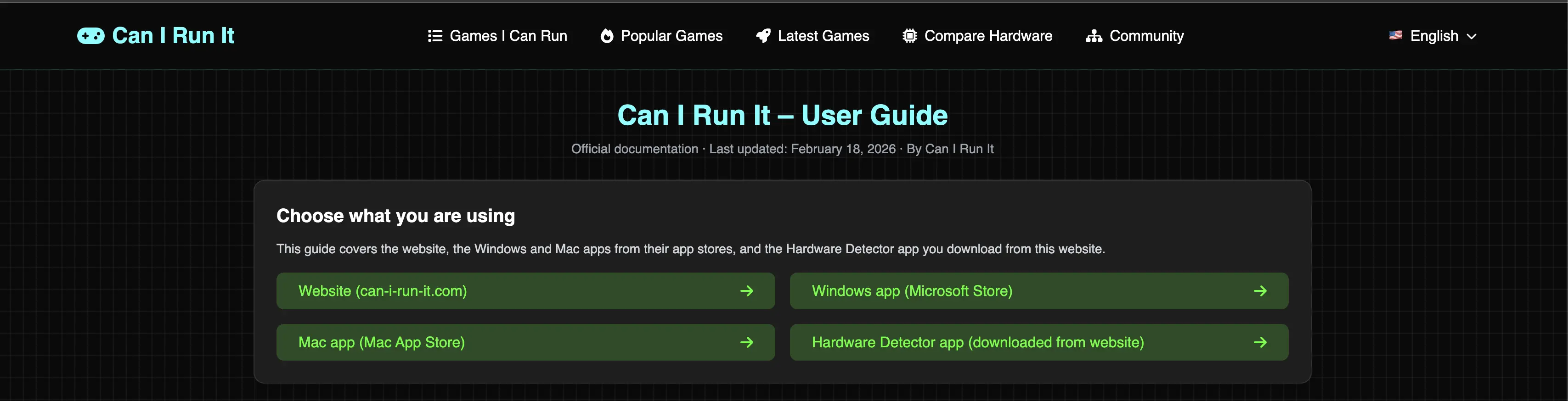
Table of Contents
1. Introduction
Can I Run It helps you check whether your PC or Mac can run a specific game. You can use the website, the desktop apps from Microsoft Store and Mac App Store, and a small Hardware Detector app that only detects your hardware and sends you back to the website with your specs filled in.
Three main ways to use Can I Run It:
- Use the website only: search for games and type your PC specs manually.
- Use the Windows or Mac app: search, save games, and check compatibility directly from your desktop.
- Use the Hardware Detector app: quickly detect your hardware and open the website with the compatibility form already filled.
2. Website Guide (can-i-run-it.com)
The website is the core of Can I Run It. All compatibility results and detailed analyses are shown here, even when you start from the desktop apps or the Hardware Detector.
2.1 Home & Game Search

- Use the search box on the homepage to find any game by name.
- Open the game page to see its description, screenshots, and minimum/recommended system requirements.
2.2 “Can I run this game on my PC?”
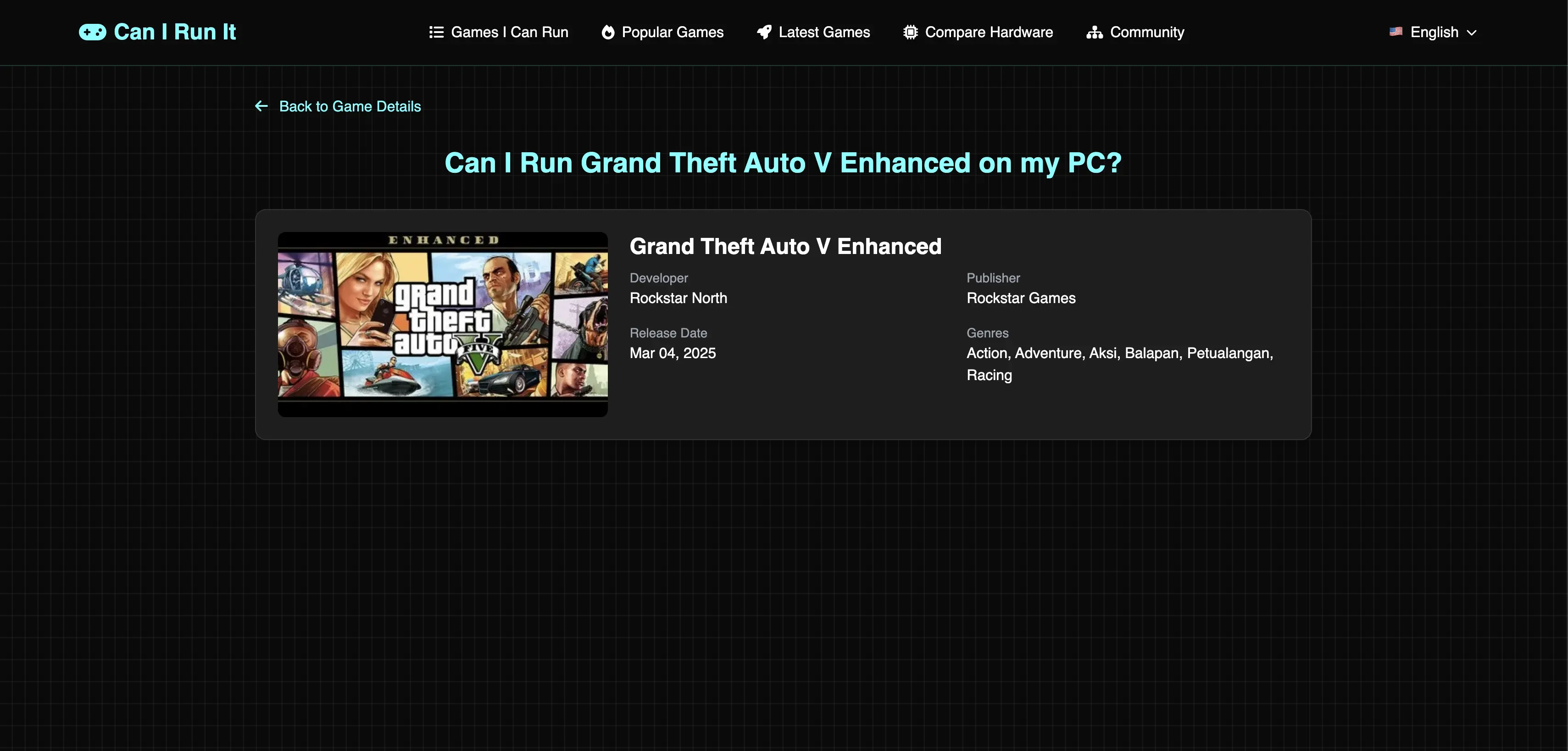
- On a game page, click the button such as “Can I Run This Game?” to open the compatibility check page (`/game-slug/on-my-pc/`).
- Fill in your operating system, CPU, GPU, RAM, storage, and DirectX (for Windows).
- Click “Check Compatibility” to get a detailed result page showing if your PC can run the game and which component is the bottleneck.
2.3 Games I Can Run
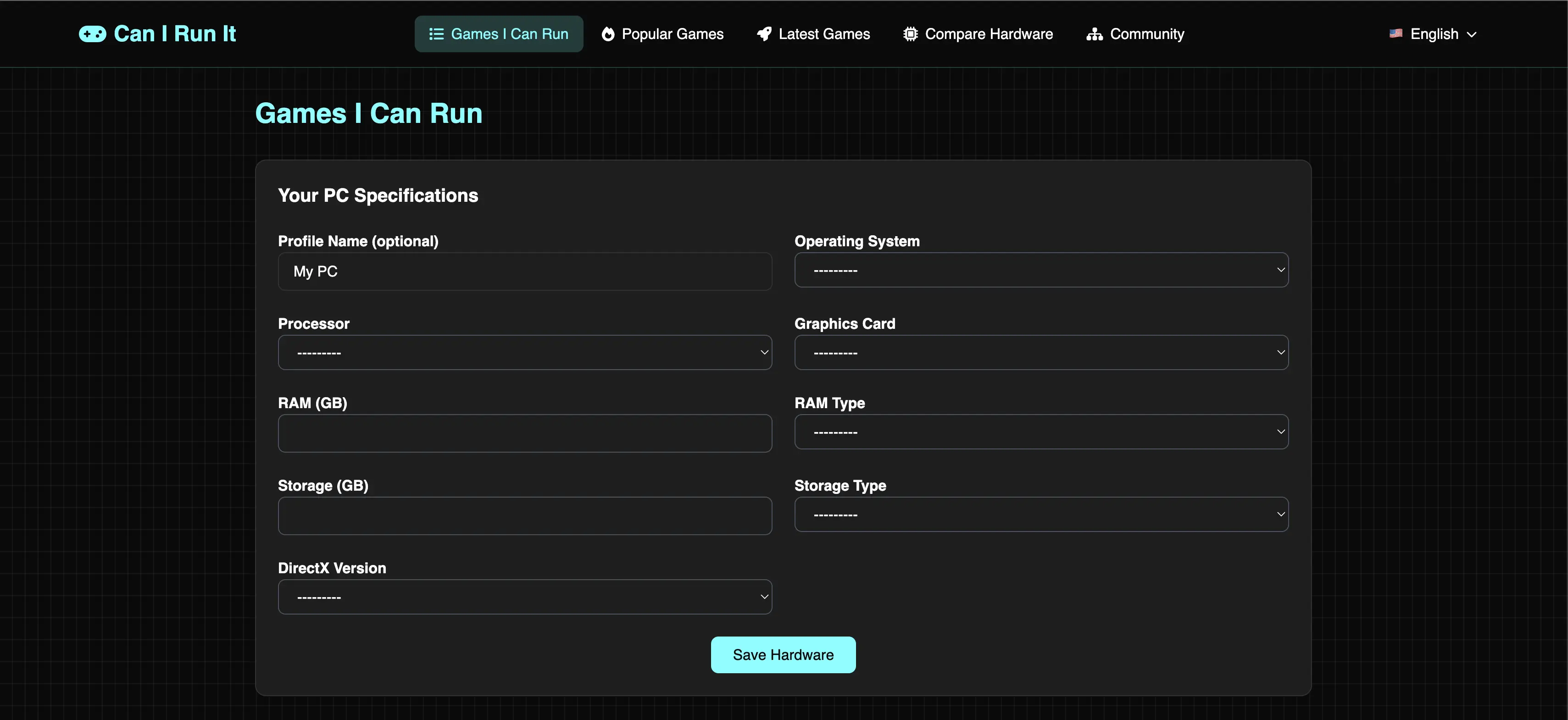
- Go to “Games I Can Run” to see a list of games that match your hardware.
- Enter or load your hardware profile once, then filter by year, genre, and popularity.
- Use this when you want ideas for games your PC can handle, instead of checking just one game.
2.4 Compare Hardware on the Website
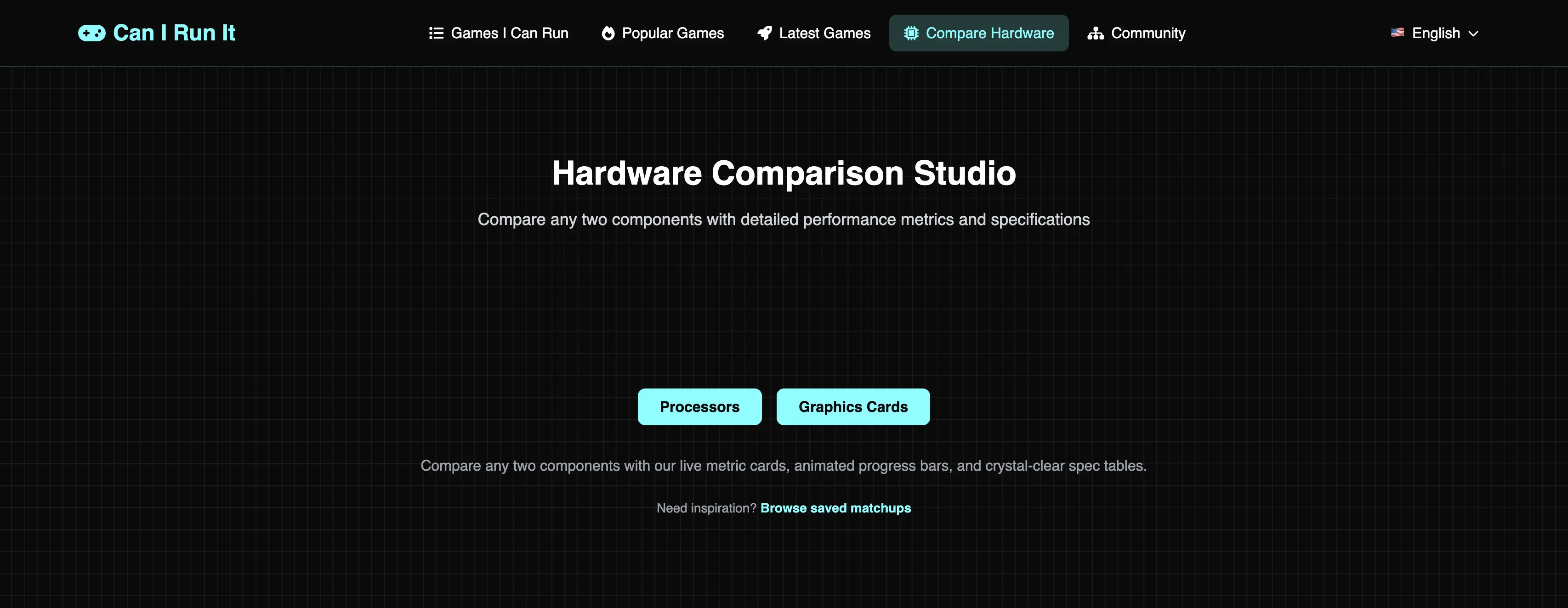
- Use the compare pages to compare two CPUs or two GPUs (for example, before buying an upgrade).
- You can reach comparison pages either from the desktop app or directly via compare URLs on the site.
Real-life example: Website only
Suppose you want to know if your PC can run “Elden Ring” but you do not want to install any app. You go to can-i-run-it.com, search for “Elden Ring”, open its game page, click “Can I Run This Game?”, fill in your CPU, GPU, RAM, and storage, and click “Check Compatibility”. The result page shows whether you can run it and which parts of your PC are above or below the recommended requirements.
3. Windows App Guide (Microsoft Store)
The Windows app brings the same functionality to your desktop, with a modern interface and saved history, favorites, and hardware profiles.
3.1 Installation (Windows Store)
- Open Microsoft Store, search for “Can I Run It”, and install the app.
- After installation, launch it from the Start Menu or from a desktop shortcut.
- The app needs an internet connection to search for games and fetch compatibility results.
3.2 Main screens and options
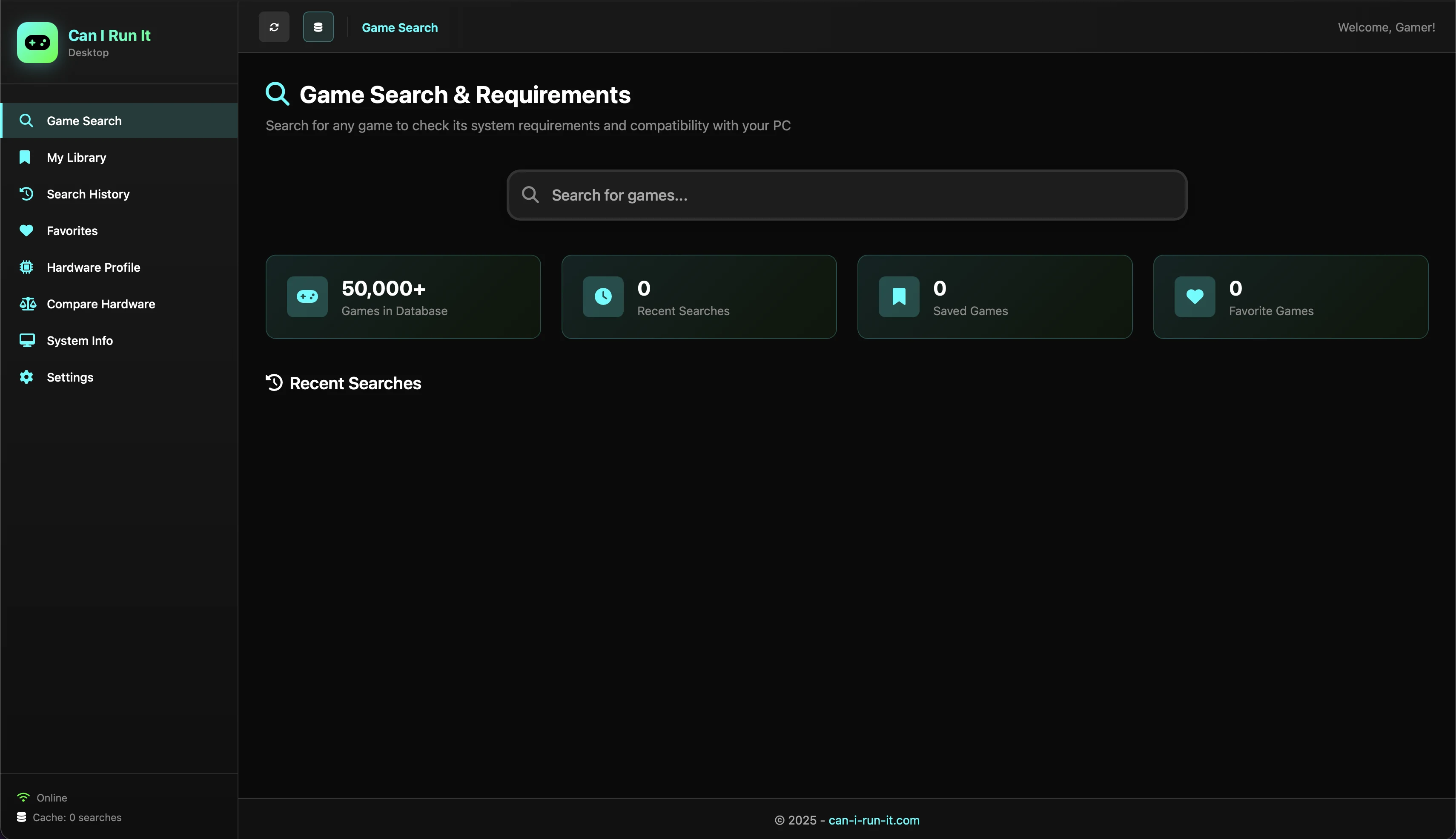
- Game Search: Search for games, view details, open the website page, or run compatibility checks directly.
- My Library: Games you chose to save. Use this as your personal watch list.
- Favorites: Games you marked with the heart icon.
- Search History: Recent searches, with options to clear or export.
- Hardware Profile: One or more PC profiles; you can auto-detect or set them manually and choose a default profile.
- Compare Hardware: Pick two CPUs or two GPUs and open a detailed comparison on the website.
- System Info: Read-only overview of what the app sees about your CPU, RAM, OS, and graphics.
- Settings: Control caching, notifications, backups, and other preferences.
3.3 Checking compatibility inside the Windows app
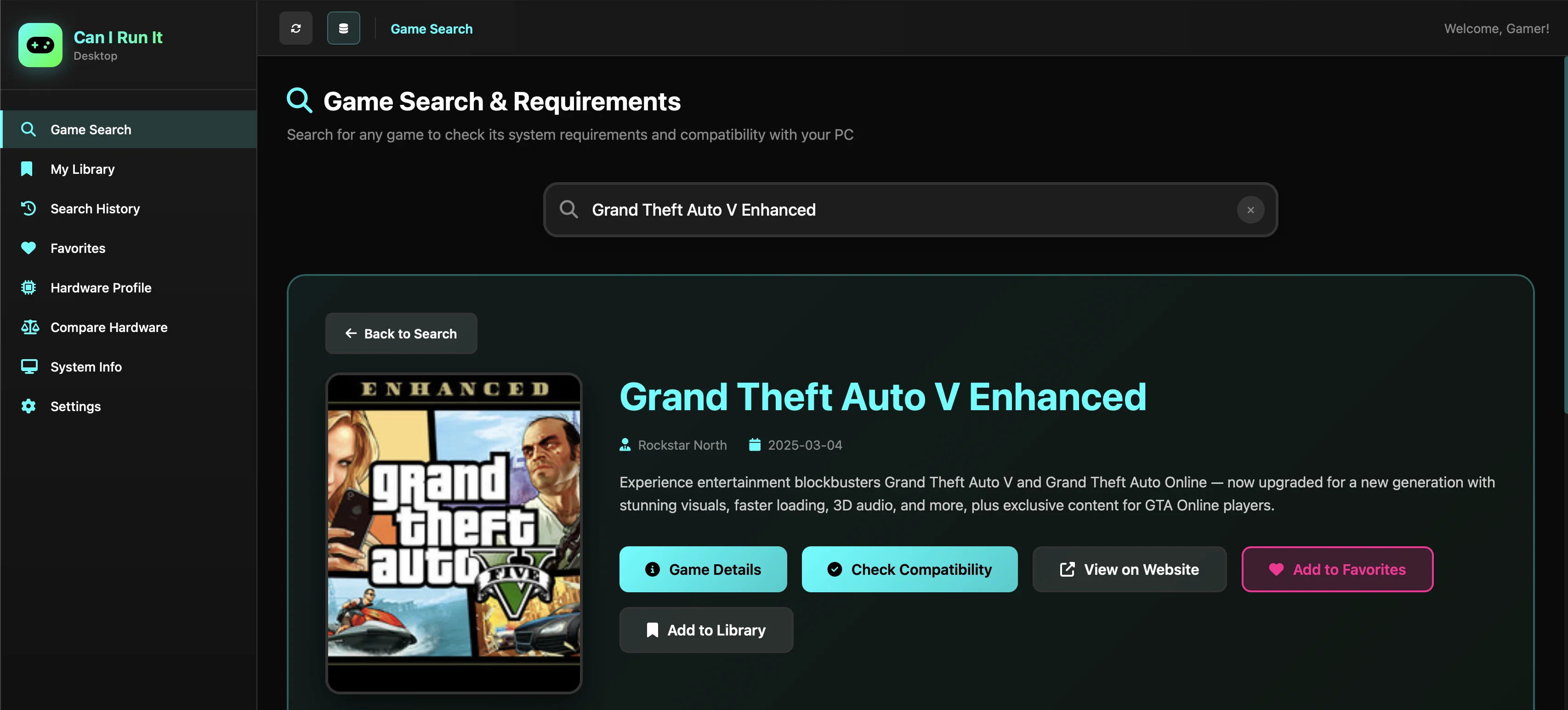
- Go to Game Search and find the game you are interested in.
- Click the game to open its details panel.
- Make sure you have a default hardware profile set in the Hardware Profile section (auto-detect or manual).
- Click “Check Compatibility” in the game details panel.
- The app calls the website API and displays a compatibility result panel (score, CPU/GPU/RAM/Storage breakdown, bottleneck, and a link to read the complete analysis on the website).
Real-life example: Windows app
You install the Windows app from Microsoft Store and want to know if you can run “Cyberpunk 2077”. On first launch, the app opens this guide in your browser so you can read how it works. In the app you go to Game Search, type “Cyberpunk 2077”, select it, then go to Hardware Profile and click “Detect My Hardware”. After saving that profile as default, you go back to the game and click “Check Compatibility”. The app shows a result panel and, if you want more detail, you click “Read Complete Analysis” to open the full result page on the website.
4. Mac App Guide (Mac App Store)
The Mac app offers the same core features as the Windows app, adapted for macOS and Apple Silicon where available.
4.1 Installation (Mac App Store)
- Open the Mac App Store, search for “Can I Run It”, and click Get/Install.
- Launch it from Launchpad or Spotlight (Cmd+Space, then type “Can I Run It”).
- macOS may show a standard confirmation the first time you open a downloaded app; follow the prompts if needed.
4.2 Main screens and options
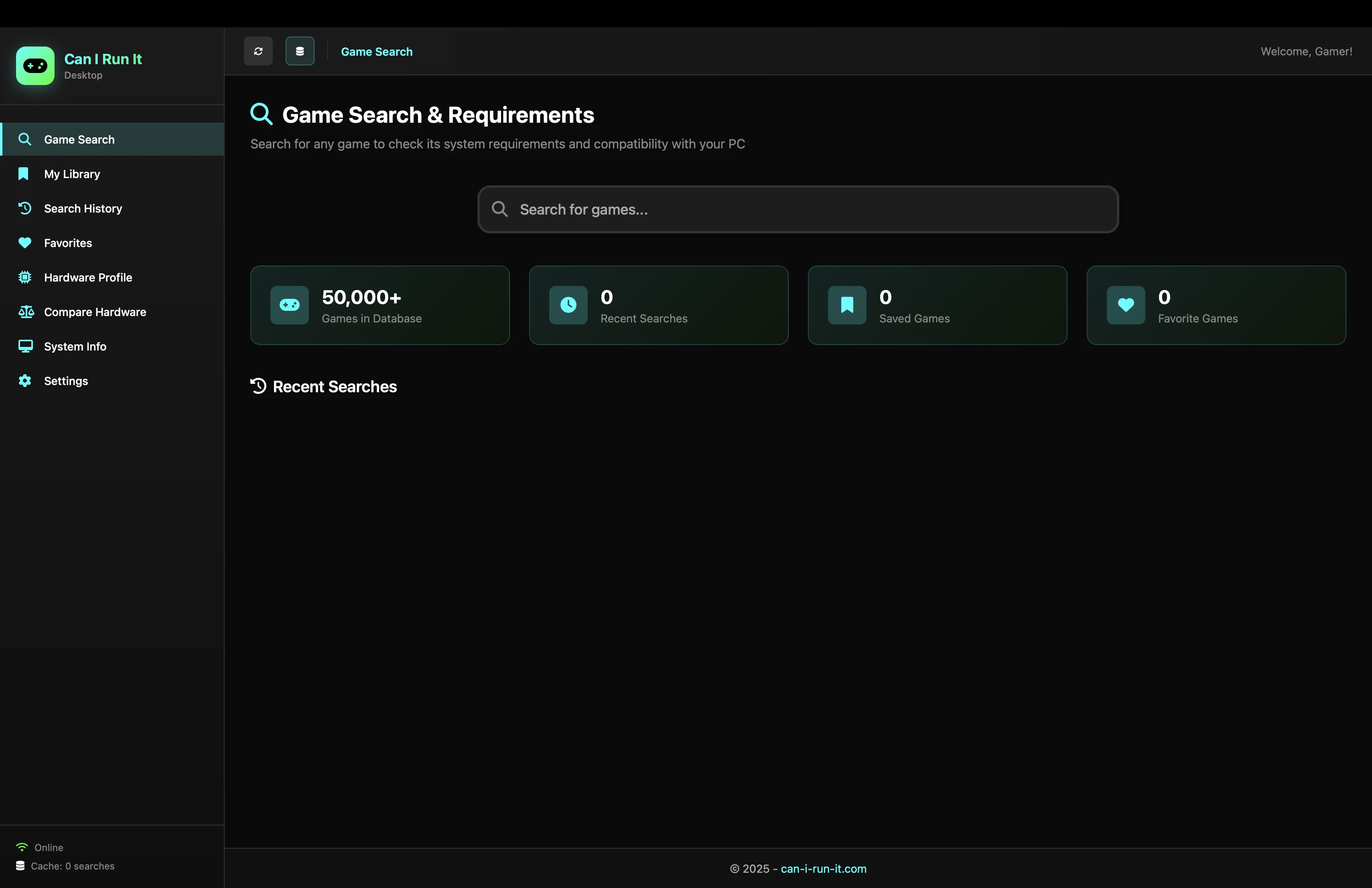
The Mac app has the same sections as the Windows app: Game Search, Library, History, Favorites, Hardware Profile, Compare Hardware, System Info, and Settings. The behaviour is identical, except that macOS does not use DirectX and OS names are macOS versions instead of Windows versions.
Real-life example: Mac app
You install the Mac app from the Mac App Store and want to check if your MacBook can run “Baldur’s Gate 3”. On first launch, the app opens this guide in your browser. In the app you search for “Baldur’s Gate 3”, then go to Hardware Profile and click “Detect My Hardware” to auto-detect your Mac’s CPU, GPU, and RAM. After saving that profile, you return to the game and click “Check Compatibility” to see whether your Mac meets the requirements.
5. Hardware Detector App Guide
The Hardware Detector is a small helper app you download from this website. It only detects your hardware and then sends you back to the website with the compatibility form pre-filled. It does not have its own full UI and does not show game results inside the app.
5.1 Windows Hardware Detector (EXE)
- Download the Windows Hardware Detector from can-i-run-it.com (the website will offer the correct file for your OS).
- Run the .exe file and follow any Windows SmartScreen prompts (click “More info” → “Run anyway” if you trust the source).
- Inside the app, click the button to detect your hardware. When done, click the “Send to website” button.
- Your browser opens the Can I Run It website with the hardware form already filled, ready for you to pick a game and check compatibility.
5.2 Mac Hardware Detector (DMG/ZIP)
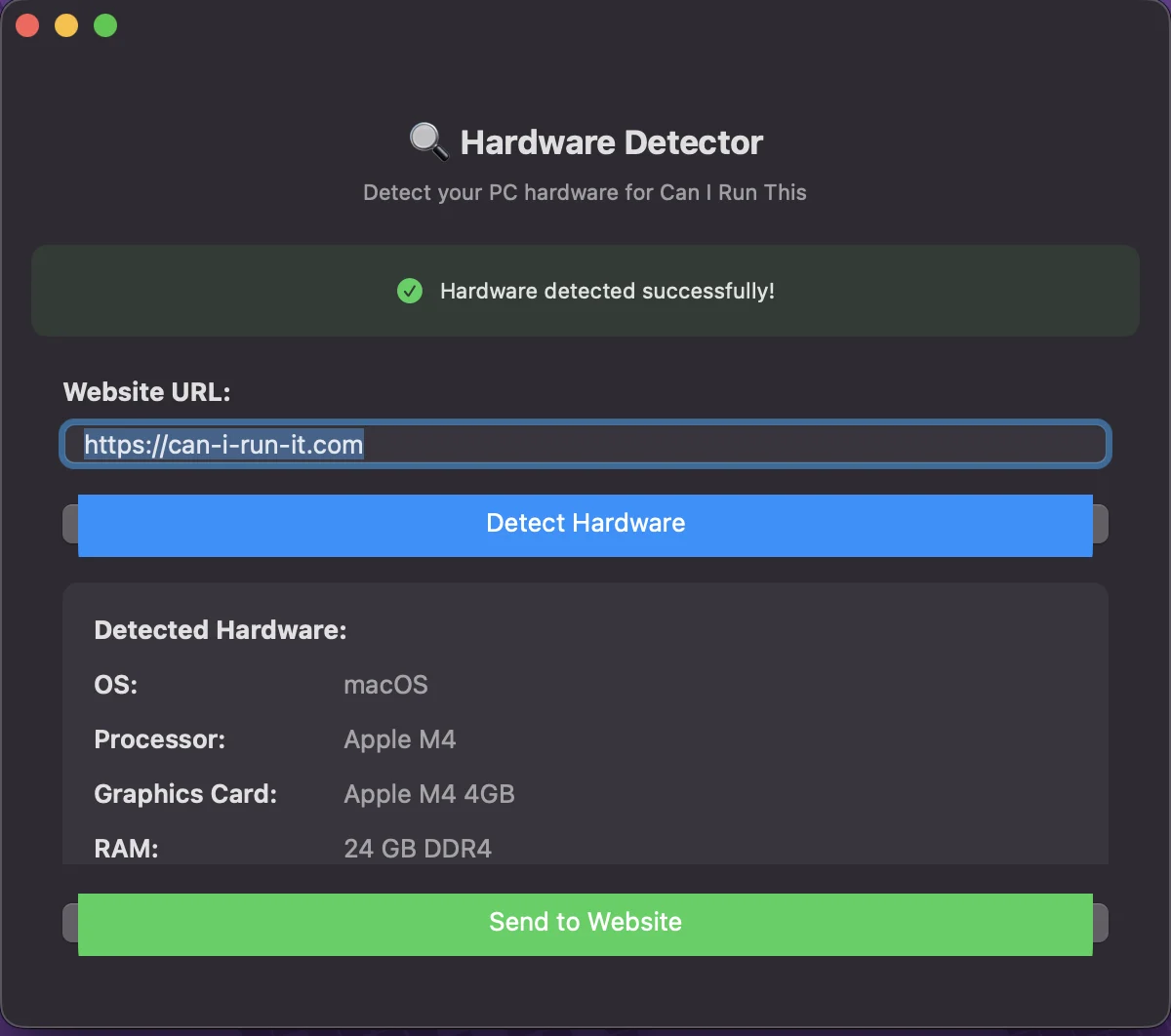
- Download the Mac Hardware Detector from can-i-run-it.com.
- Open the DMG or unzip the app, then move it to Applications.
- If macOS shows a Gatekeeper warning, open System Settings → Privacy & Security and click “Open Anyway” for this app.
- Run the detector, let it scan your Mac, then click “Send to website” to open the compatibility page with your specs filled in.
Real-life example: Hardware Detector only
Imagine you are on a shared PC and do not want to install a full desktop app from the store. Instead you download the Hardware Detector from can-i-run-it.com, run it once to detect your CPU, GPU, and RAM, and then click “Send to website”. Your browser opens the compatibility page with the hardware form already filled, so you just choose a game and click “Check Compatibility” without typing your specs manually.
6. Troubleshooting & Common Questions
Installation issues
- Windows: if SmartScreen says “Windows protected your PC”, click “More info” → “Run anyway” if you trust can-i-run-it.com.
- Mac: if Gatekeeper says the app is from an unidentified developer, open System Settings → Privacy & Security and allow the app to run.
Hardware detection issues
- If your GPU is shown as “Unknown”, update your graphics drivers (NVIDIA/AMD/Intel) and restart before running detection again.
- If detection fails completely, check your internet connection and try again after clicking any “Refresh Database” or cache clear options in the apps.
Connection and API issues
- If the app shows you are offline but your browser works, a firewall or antivirus may be blocking the app; try another network or check your firewall settings.
- If compatibility checks time out, try again later; the website API may be temporarily busy.
Where to go next
- If you mostly browse from a browser, start with the Website Guide above.
- If you prefer using native apps, follow the Windows or Mac App Guide sections.
- If you only want to avoid typing hardware specs, use the Hardware Detector app with the website.